
We all know that Instagram is a fantastic platform for sharing quick videos, but what happens when you want to take those videos and embed them on your website?
I had a similar situation with a client recently. She made an awesome timelapse video on her Instagram account and wanted to put it on her website. The only copy of her timelapse video was on her Instagram account. Unfortunately, there’s no way to directly link to the video on Instagram to post it on your website. The good news is that you can download your video pretty easily. Let’s walk through how to download your Instagram videos and upload them to YouTube so you can seamlessly embed them into your website.
Step 1: Download Your Instagram Video
First things first, let’s get that video off Instagram and onto your device.
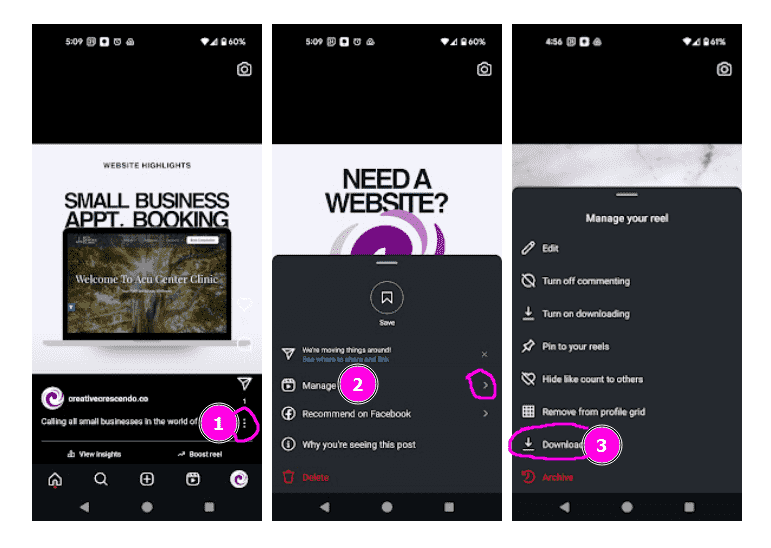
If you’ve just posted your video as a story or Reel, you can save it directly. Tap on the three dots (…) and select “Manage” and then select “Download”
Step 2: Upload Your Video to YouTube
Now that you’ve got your video saved, I recommend you put it on your own YouTube channel so it's easy to embed on your website. This would be the easiest way for you to upload and manage your own videos in the future and you can do this on your phone. This not only makes it easy to embed in your website but also helps with SEO—Google loves YouTube videos!
- Sign in to Your YouTube Account:
- Head over to YouTube and sign in. If you don’t have an account, it’s super easy to set one up.
- Upload Your Video:
- Click on the camera icon with a plus sign (it’s usually at the top right).
- Select “Upload Video” and choose the video you just downloaded from Instagram.
- While it’s uploading, fill in the details like the title, description, and tags. Be sure to add relevant keywords that relate to your website content.
- Customize Your Video Settings:
- Choose a thumbnail that represents your video well. You can even design a custom one if you’re feeling creative.
- Set the visibility to “Public” or “Unlisted,” depending on whether you want everyone to find it or just those with the link.
- Hit “Publish,” and you’re all set!
Step 3: Embed the Video into Your Website
Now, let’s bring it home by embedding that YouTube video into your website.
- Get the Embed Code:
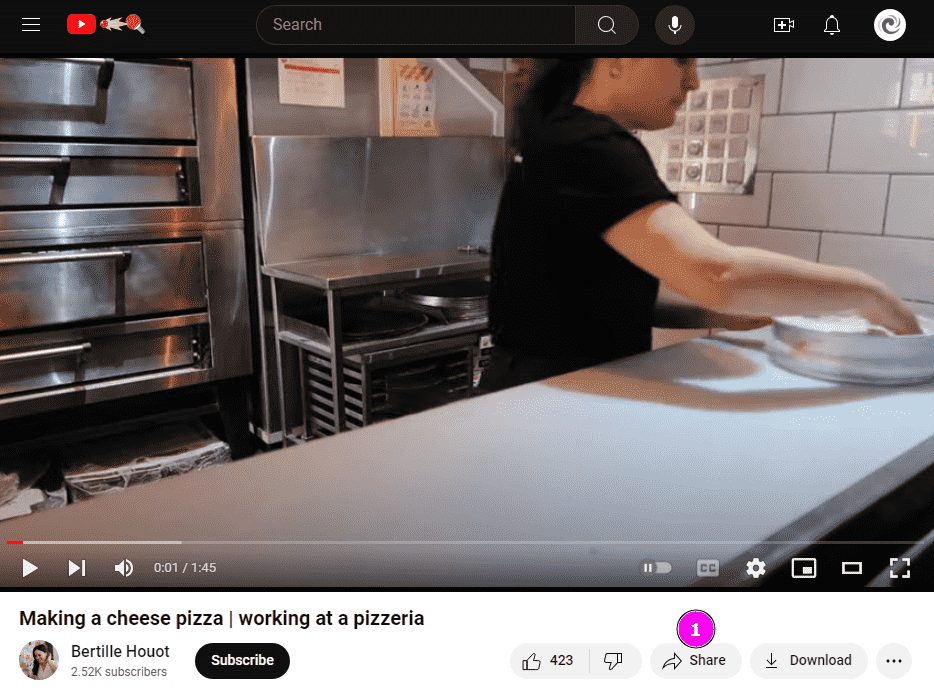
- Once your video is live on YouTube, click on “Share” under the video.
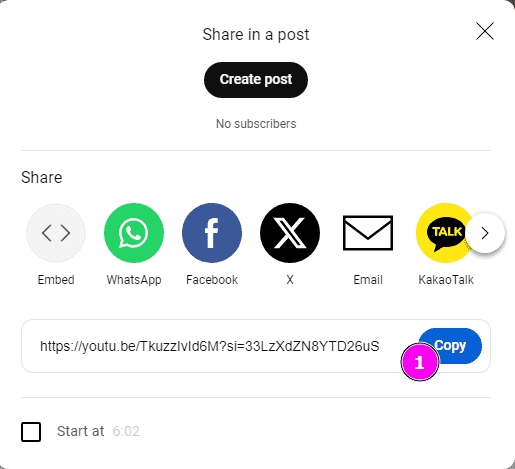
- Copy the code that YouTube gives you.
- Add the YouTube video Code to Your Website:
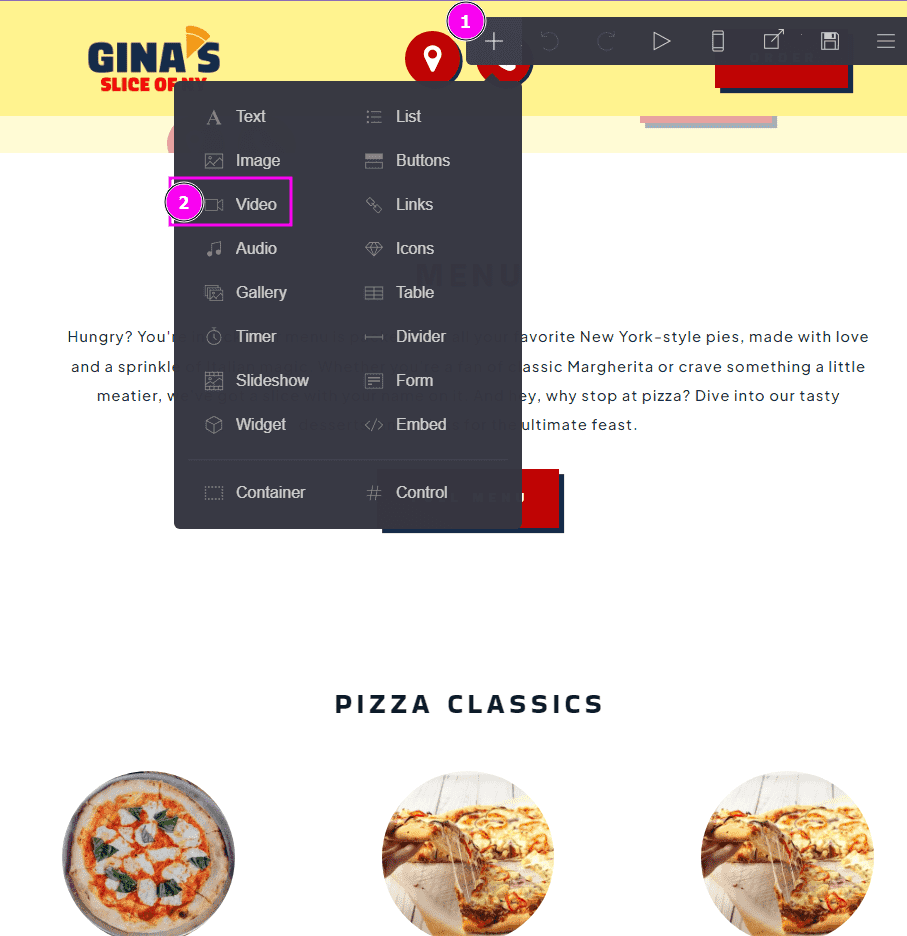
- If you’re using Carrd, create a video element and add the code to your page
- If you’re using WordPress, create a video block and add the code to your page
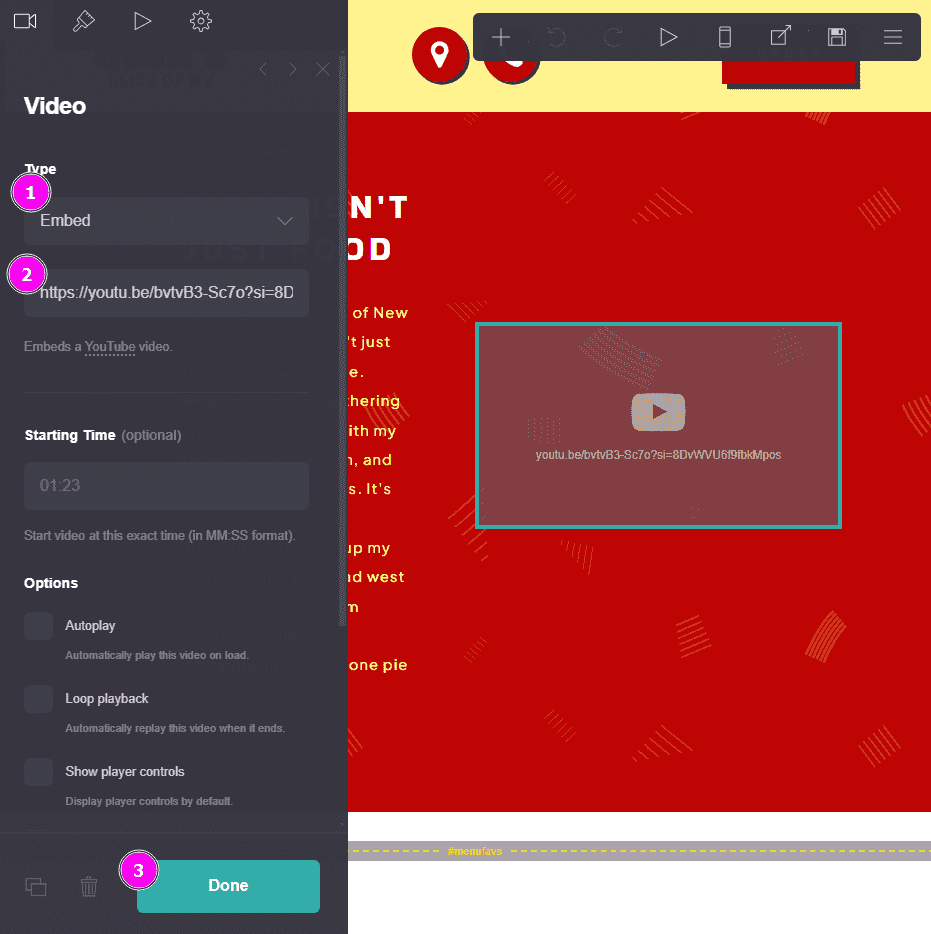
And that’s it! You’ve taken your Instagram video, uploaded it to YouTube, and embedded it into your website—all in a few easy steps. Not only does this give your website fresh content, but it also makes your videos more accessible and shareable. So next time you’ve got a video worth sharing, don’t let it stay locked away on Instagram. Repurpose it, and let it shine on your website!
